GitLab
GitLab Usage Monitoring
About GitLab
GitLab is a DevOps platform that provides a single application for the entire software development lifecycle, from project planning and source code management to CI/CD and monitoring. Monitoring GitLab usage is essential for managing team productivity and optimizing costs, similar to other development tools like Jira or GitHub.
Prerequisites
To begin monitoring GitLab, ensure you have the following components and permissions in place:
- OpenLM Components: OpenLM Cloud Broker and OpenLM SLM are required.
- Platform-specific Requirements: You'll need administrative access to your GitLab instance to generate a personal access token with the necessary read permissions for user and license data.
Configuring data collection
Follow these step-by-step instructions to set up data collection for GitLab in OpenLM Cloud Broker:
-
Verify your email address, if it hasn't been verified yet.
-
In the upper-right corner of any page on GitHub, click your profile picture, then click Settings.
-
In the left sidebar, click Developer settings.
-
In the left sidebar, under Personal access tokens, click Tokens (classic).
-
Select Generate new token, then click Generate new token (classic).
-
In the "Note" field, give your token a descriptive name.
-
To give your token an expiration, select Expiration, then choose a default option or click Custom to enter a date.
-
Select the scopes you'd like to grant this token. To use your token to access repositories from the command line, select repo. A token with no assigned scopes can only access public information. For more information, see Scopes for OAuth apps.
-
Click Generate token.
-
Optionally, to copy the new token to your clipboard, click .
-
To use your token to access resources owned by an organization that uses SAML single sign-on, authorize the token. For more information, see Authorizing a personal access token for use with single sign-on in the GitHub Enterprise Cloud documentation.
-
Add Credentials: In the OpenLM Cloud Broker dashboard, find the GitLab integration and enter your host url and access token.
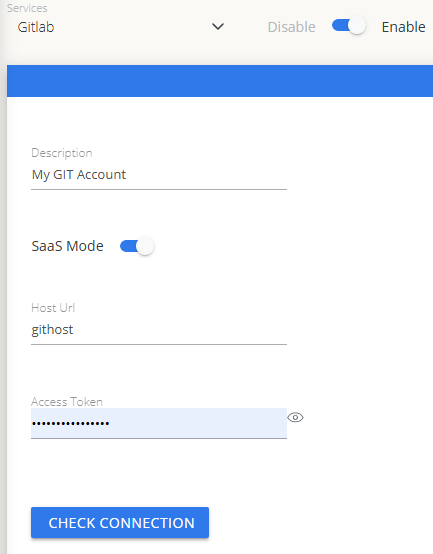
- Verify Connection: Test the connection to ensure OpenLM can successfully communicate with the GitLab API.
- Approve in OpenLM: Approve the new data source within the License Servers section.
- See Data: Usage data for GitLab users and licenses will now be visible in the OpenLM Allocation service.
Viewing reports
Access your reports to analyze usage patterns.
- User Activity Trends: See which developers are most active in the platform, helping you manage resource allocation.
- Expired/Unused License Reports: Identify inactive users and reclaim their licenses.