IBM LUM
OpenLM supports monitoring a wide and growing variety of license managers, such as FlexLM and DSLS. This guide describes how to configure OpenLM with IBM LUM to monitor license usage, denials, and statistics.
Requirements
- OpenLM Platform
- OpenLM Broker v25.x or higher installed on the same machine as IBM LUM, and approve it in Broker Hub.
Automatic Broker configuration
-
Open Broker UI at http://localhost:5090/.
-
Go to License Managers -> Detect
-
IBM LUM should appears
Use OpenLM Broker
The Broker queries license usage locally and forwards data to OpenLM Server. It requires Java JRE and can run on both Windows and UNIX/Linux servers.
Configuring via Broker UI
-
Open Broker web UI: http://localhost:5090/.
-
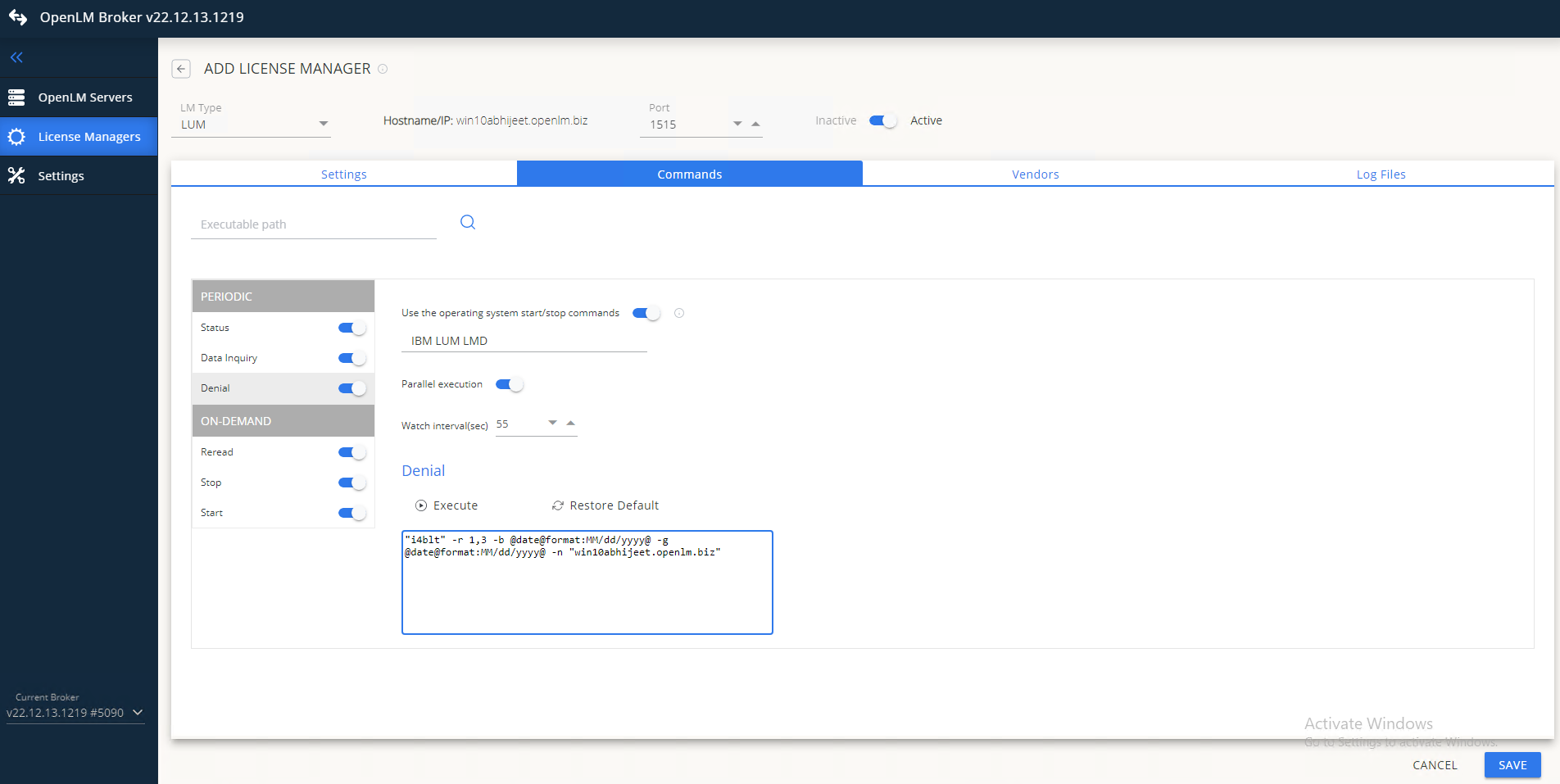
Go to License Managers -> Add License Manager.
-
Select LUM, enter the port (default: 1515), and click Add.

-
Configure Cluster toggle:
-
Off: Single server.
-
On: For HAL (see above).
-
-
In Commands, set the path to i4blt.exe.
-
In Vendors, set the correct name.
-
Click Save.
-
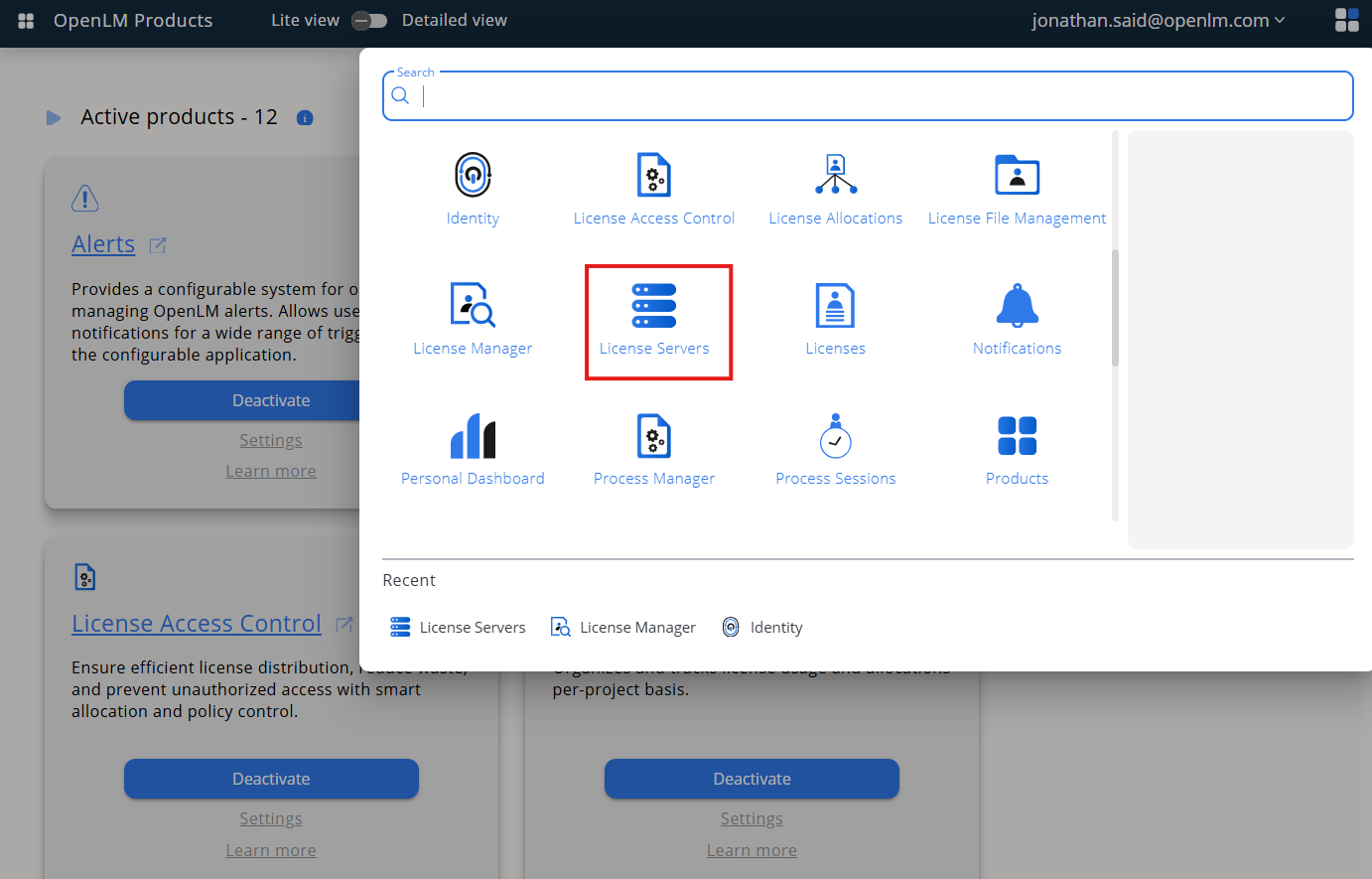
Log in to OpenLM Platform.
-
From Menu, go to License Servers.
-
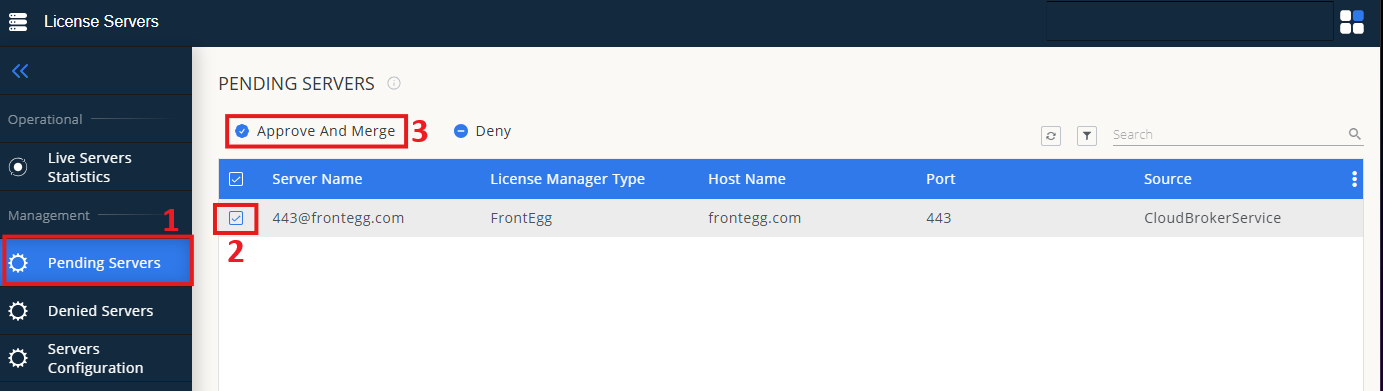
On left menu, select Pending Server
-
On the list, select the IBM LUM license manager and click on Approve and Merge
-
In OpenLM Web Interface -> Menu -> License Servers Live -> Server Statistics.
-
Ensure IBM LUM appears in the list with a green status indicator.
Note: It can take up to 3 minutes for the status to update for new connections.