INFOR SLM
Follow these steps to configure OpenLM to monitor license usage and retrieve license statistics from Infor SLM License Manager.
Requirements
Before you query the license manager, install:
- OpenLM Platform
- OpenLM Broker v25.x or higher installed on the same machine as Infor SLM, and approve it in Broker Hub.
OpenLM Broker configuration
note
OpenLM Broker must be installed and configured to report to OpenLM SLM before proceeding.
-
Open the Broker web UI at http://localhost:5090. If the default port is in use, try 5091 or 5092.
-
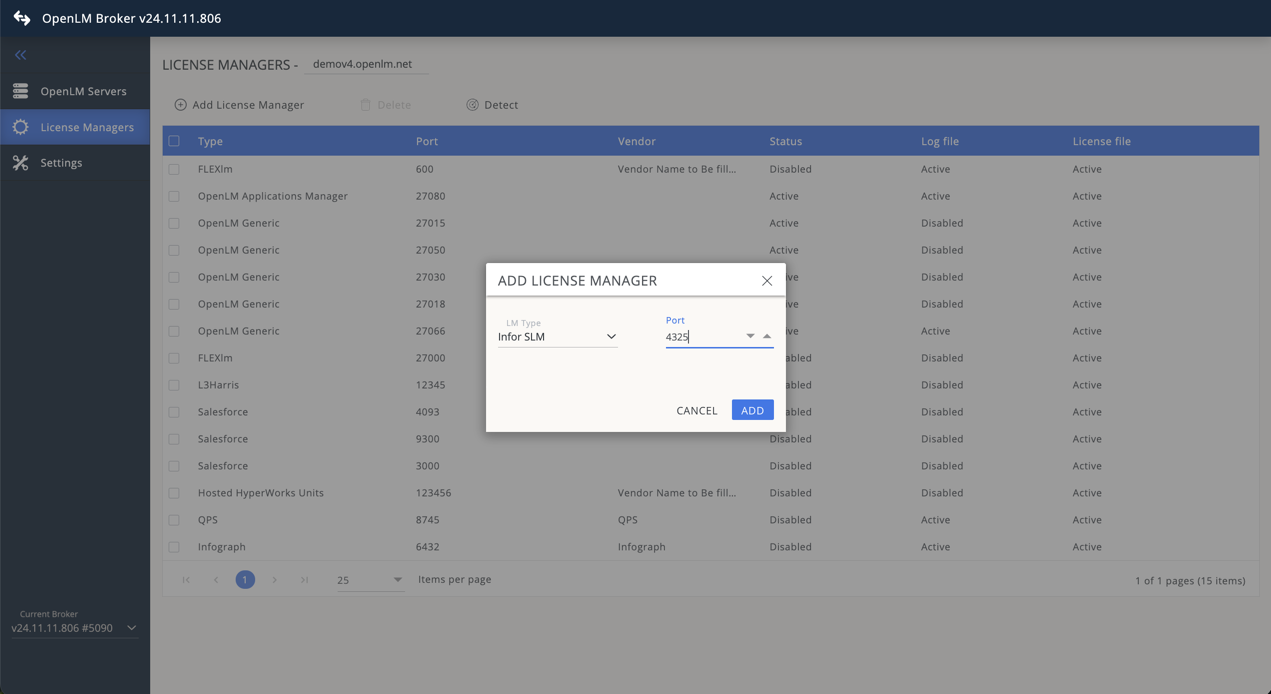
Go to License Managers -> Add License Manager.
-
From the LM Type drop-down list, select Infor SLM.
-
Enter the port number (e.g., 4325) and click Add.
-
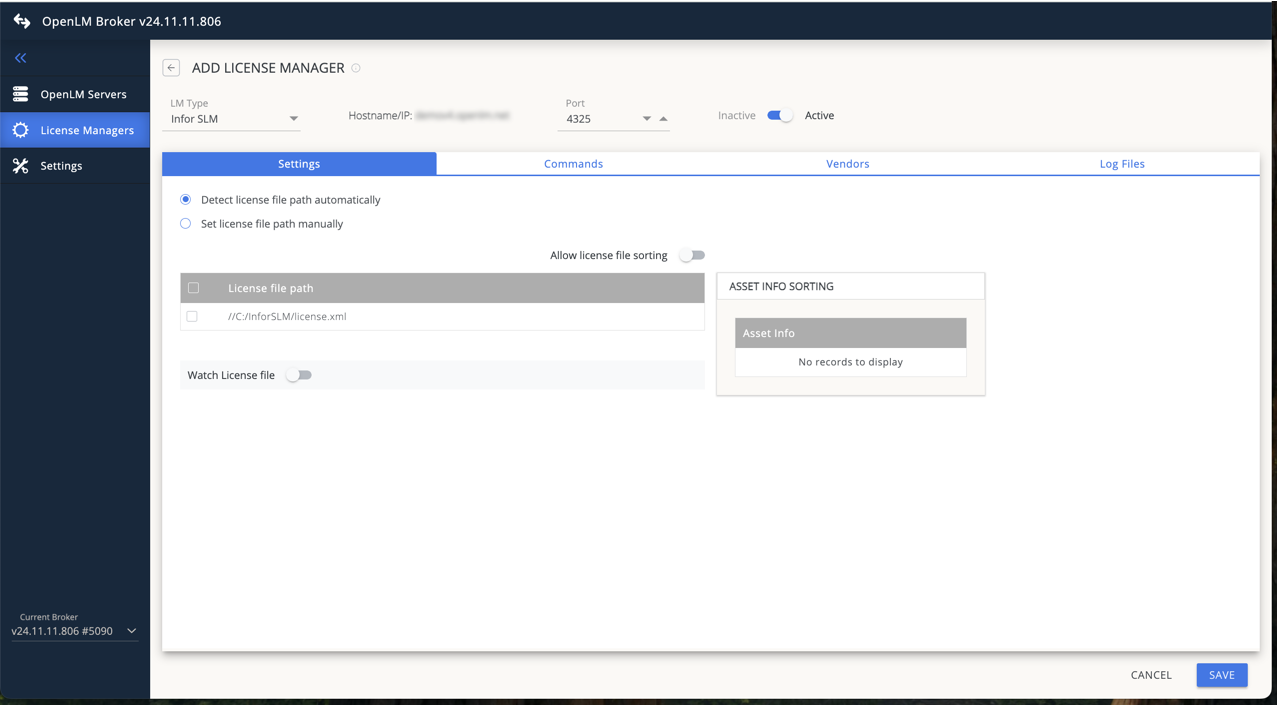
Go to the Settings tab.
- The Broker may auto-detect the license file path.
- If not, select Set license file path manually and navigate to the license.xml file.
-
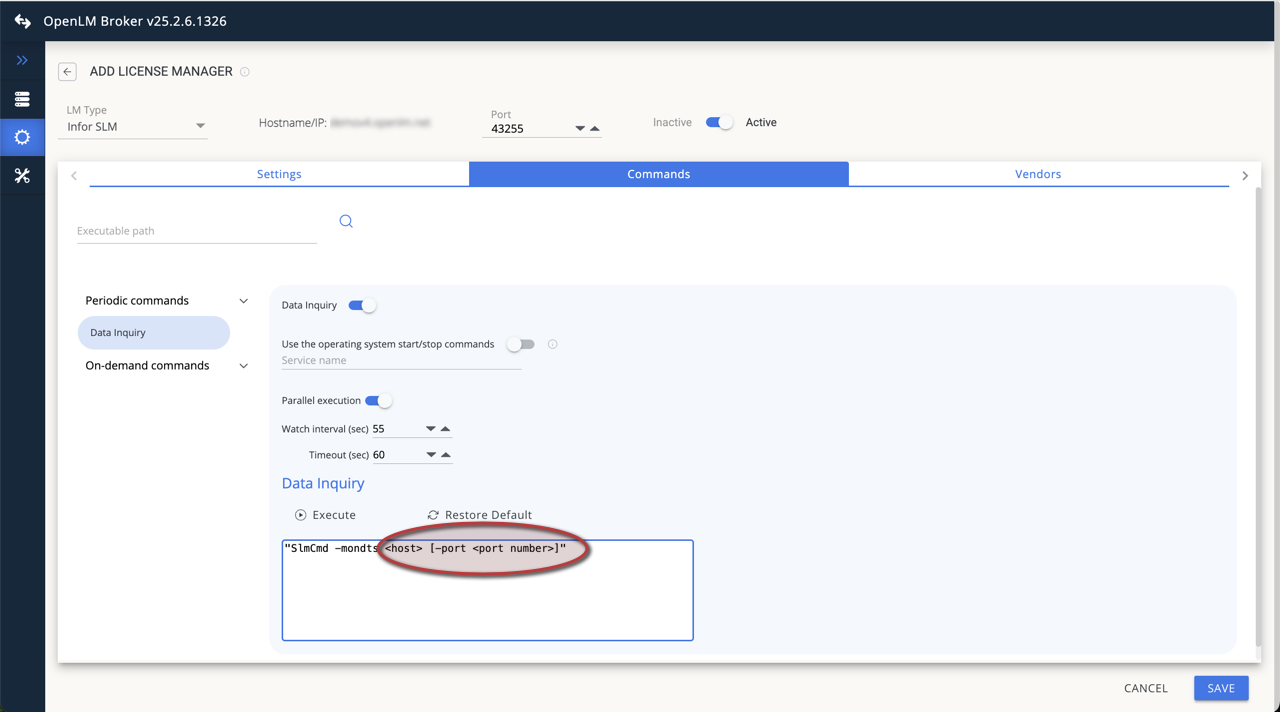
Go to the Commands tab. Enter the Infor SLM host and port in the Data Inquiry field.
-
Click Save, then click Execute to test the configuration.

-
Go to the Vendors tab. Click Add Vendor, enter Infor SLM, and click Continue.
-
Click Save.
OpenLM configuration
-
Log in to OpenLM Platform.
-
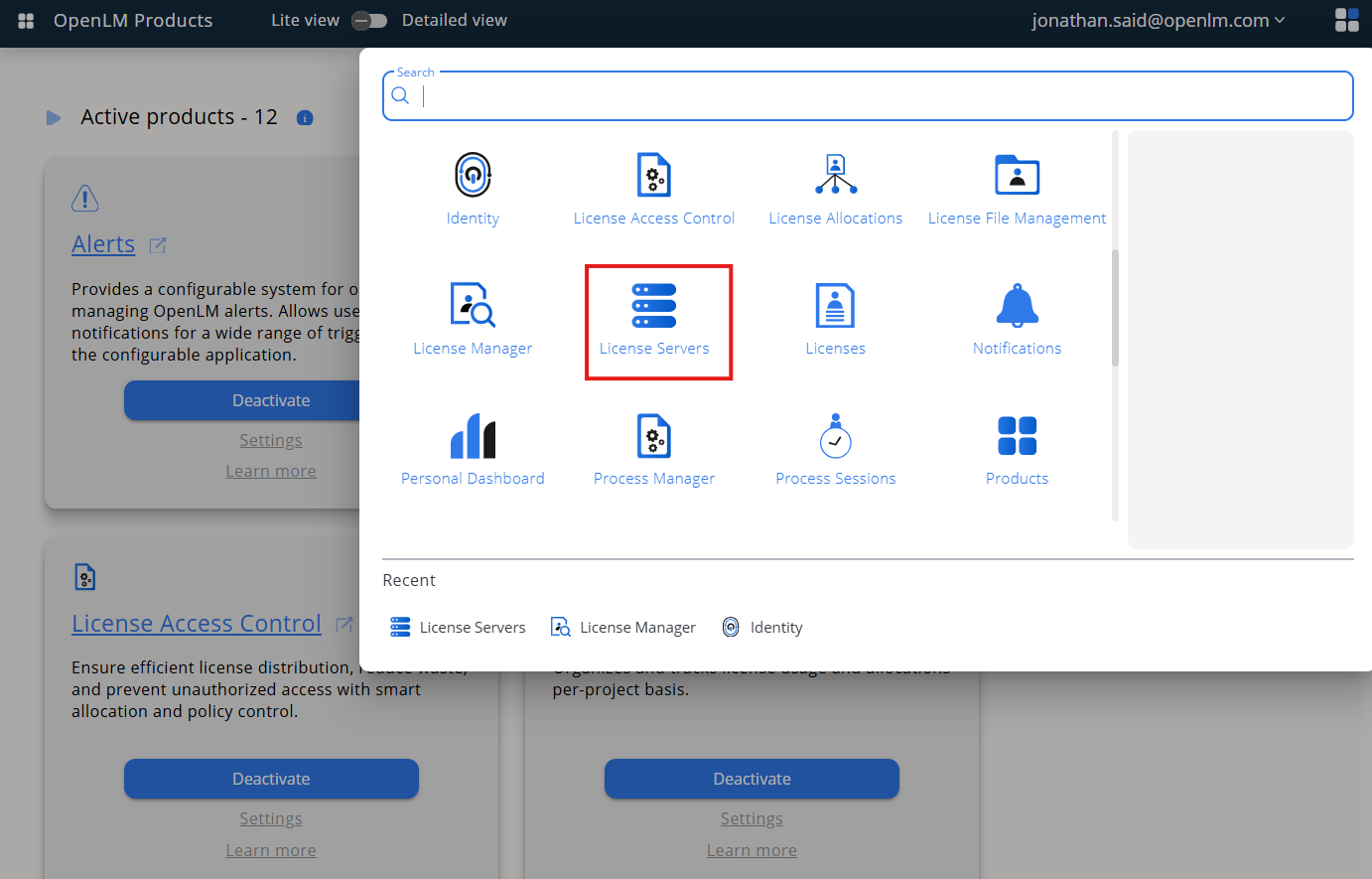
From Menu, go to License Servers.
-
On left menu, select Pending Server
-
On the list, select the InforSML license manager and click on Approve and Merge
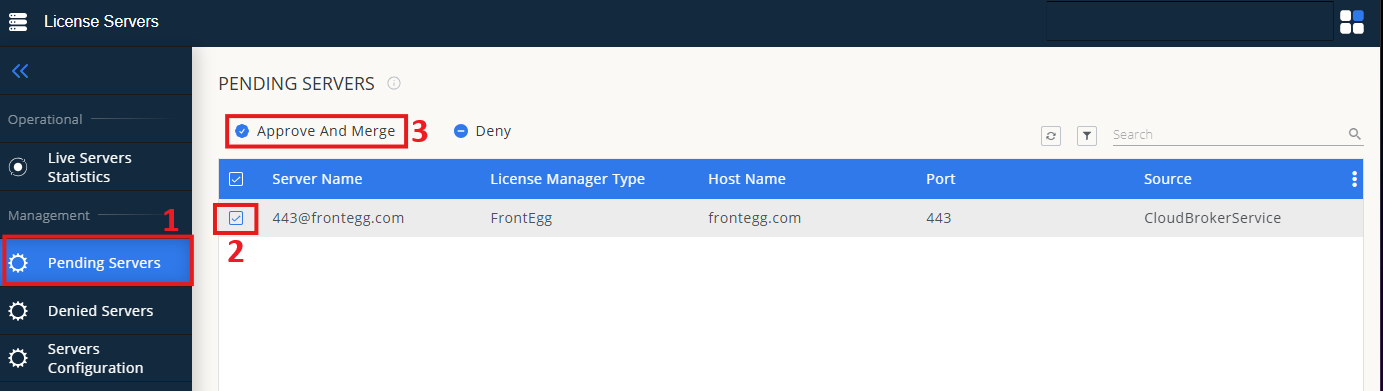
At this point, Infor SLM is added to OpenLM SLM.
Verifying the configuration
-
In OpenLM Web Interface -> Menu -> License Servers Live -> Server Statistics.
-
Ensure AEScripts appears in the list with a green status indicator.
Note: It can take up to 3 minutes for the status to update for new connections.