Reprise RLM
This guide explains how to configure OpenLM to interface with the Reprise License Manager (RLM), monitor license usage, and obtain license statistics.
Requirements
-
OpenLM Platform
-
OpenLM Broker v25.x or higher installed on the same machine as Reprise RLM, and approve it in Broker Hub.
Monitoring capabilities
Capabilities depend on how you query the RLM license server:
-
Through OpenLM Server only
- License totals
- License usage data
-
Through OpenLM Broker
- Everything above, plus:
- Buffered communication to handle network failures
- Remote start/stop of the license manager service
- License denial information
- 1-second resolution for usage reports
- Read RLM license and log files
- View RLM license file content in OpenLM Web Interface
OpenLM Broker configuration
Automatic Broker configuration
-
Open Broker UI at http://localhost:5090/.
-
Go to License Managers -> Detect
-
Altair should appears
-
Validate and save
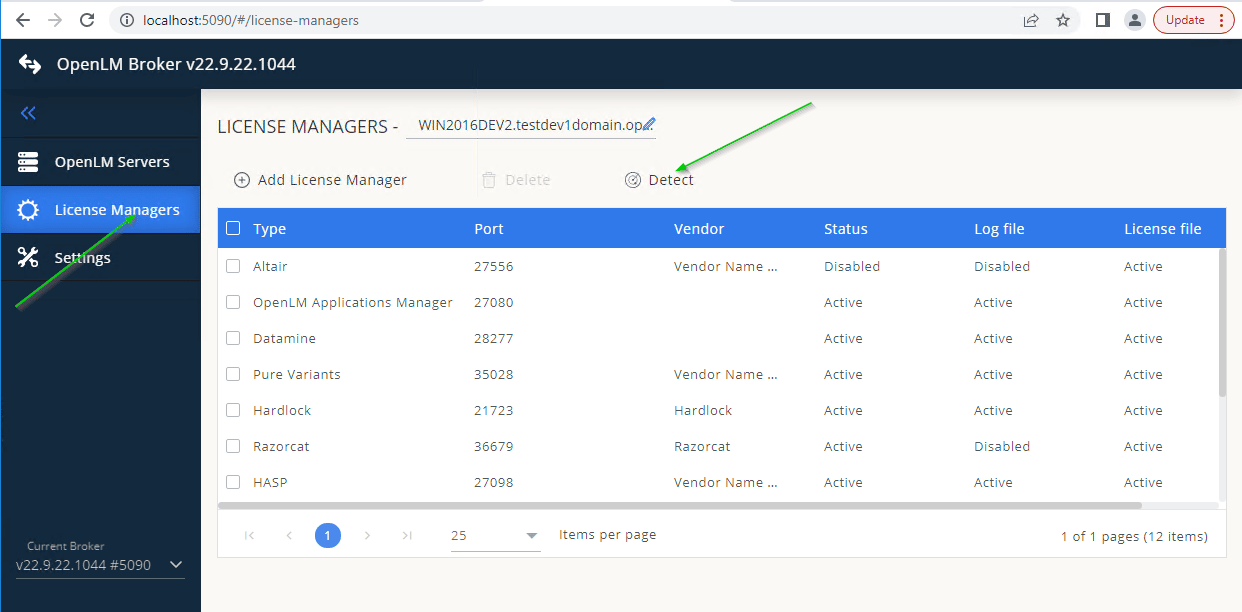
If detection fails:
-
Open Broker UI at http://localhost:5090/.
-
Go to License Managers -> Add License Manager.
-
Select RLM, enter the port (for example, 5054), and click Add.
-
Open the Settings tab.
-
Enable Set Path Manually -> Add License File Manually. Enter the license file path.
-
Toggle Watch license file on.
-
In Commands, set the path to rlmutil.exe (typically C:\RLMServer). Click Execute to test. If RLM uses a password, add the
-z <password>parameter to the status and data inquiry commands.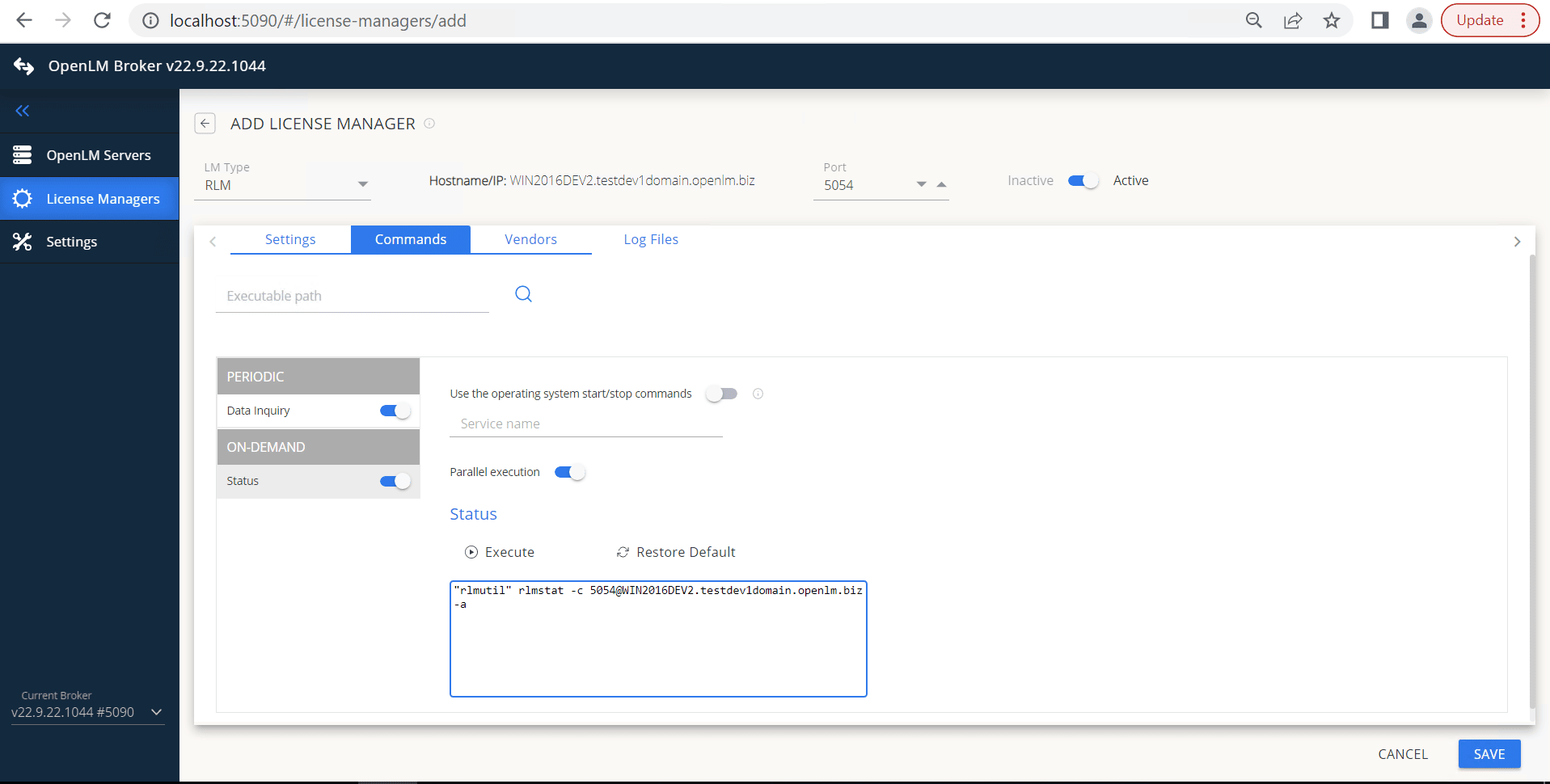
-
(Optional) If RLM runs as a service, enable Use operating system start/stop commands and enter the Service Name.
-
In Vendors, click Add Vendor and enter the RLM vendor name.
-
In Log Files, click Add Log File, enter the path, and link it to the vendor.

-
Click Save.
Configure OpenLM Platform
-
Log in to OpenLM Platform.
-
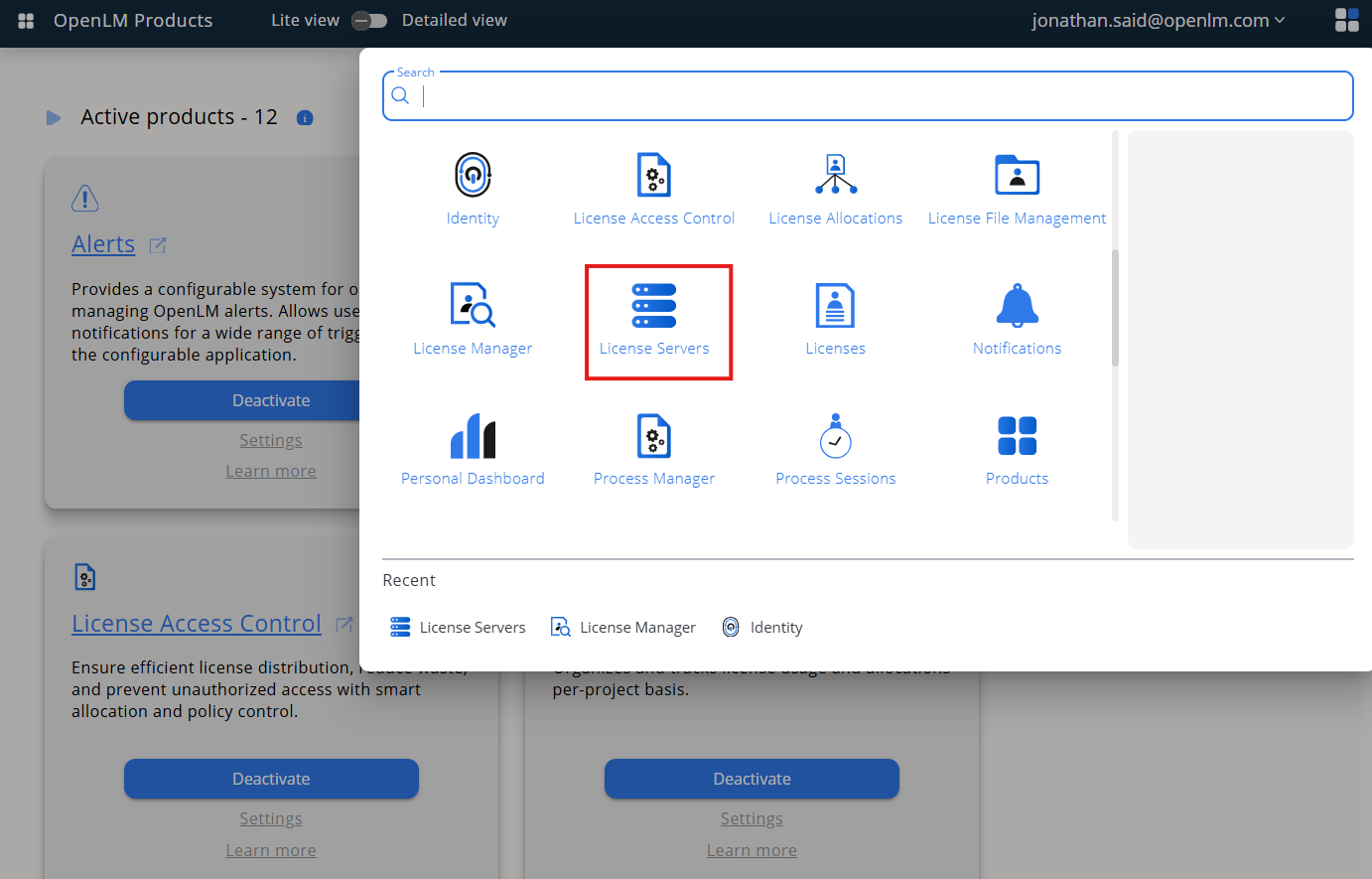
From Menu, go to License Servers.
-
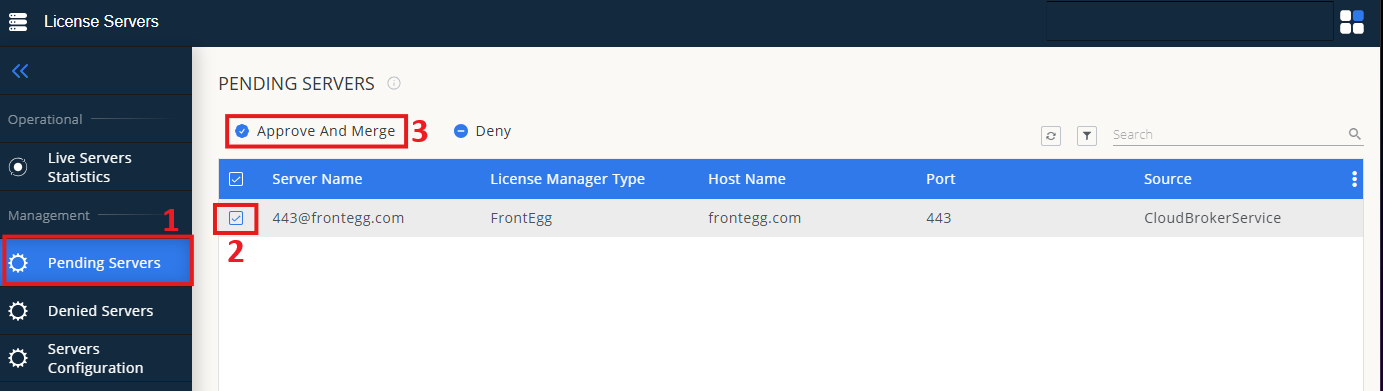
On left menu, select Pending Server
-
On the list, select the RLM license manager and click on Approve and Merge
-
In OpenLM Web Interface -> Menu -> License Servers Live -> Server Statistics.
-
Ensure RLM appears in the list with a green status indicator.
Note: It can take up to 3 minutes for the status to update for new connections.