SEH-UTN
This integration enables OpenLM to monitor SEH-UTN license dongle servers for license usage and availability.
Requirements
- OpenLM Platform
- OpenLM Broker v25.x or higher installed on the same machine as SEH-UTN, and approve it in Broker Hub.
SEH Control Center
The SEH Control Center is a web interface for configuring the SEH-UTN dongle server.
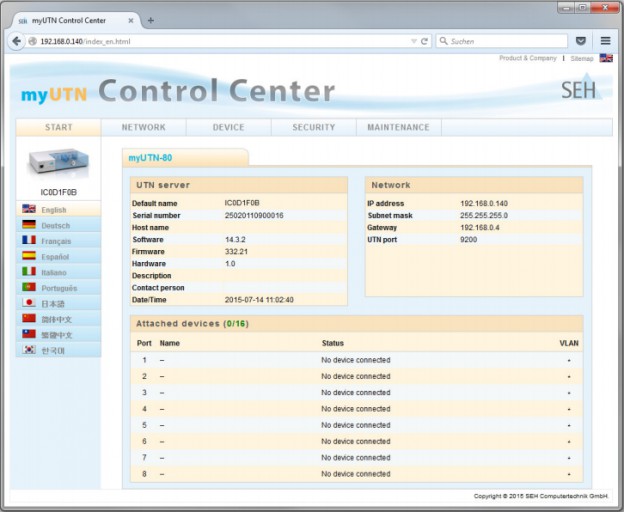
In the Control Center, note:
-
License dongle server IP address (e.g., 192.168.0.140) and server name.
-
UTN port number (e.g., 9200).
-
Device names in the Attached devices window.
Use these details when configuring OpenLM.
OpenLM Broker configuration
Do not install OpenLM Broker on a workstation that consumes dongle licenses, as utnm.exe does not report host/user details on consuming machines.
-
Install OpenLM Broker on a server or workstation with access to the SEH Control Center and the utnm.exe file.
-
Open Broker UI at http://localhost:5090/.
-
Go to License Managers -> Add License Manager.
-
In OpenLM Broker Configuration:
- Select the license manager node.
- Click Add Port if Auto-Detect fails.
- Enter the UTN port number (e.g., 9200).
- Set License Manager Type to SEH-UTN.
- Click Apply -> OK.
-
Go to the Commands node and set the path to utnm.exe on the SEH dongle host.
-
Ensure status and data_inquiry commands are configured.
-
In Vendors, enter the vendor name.
-
Click Restart Broker.
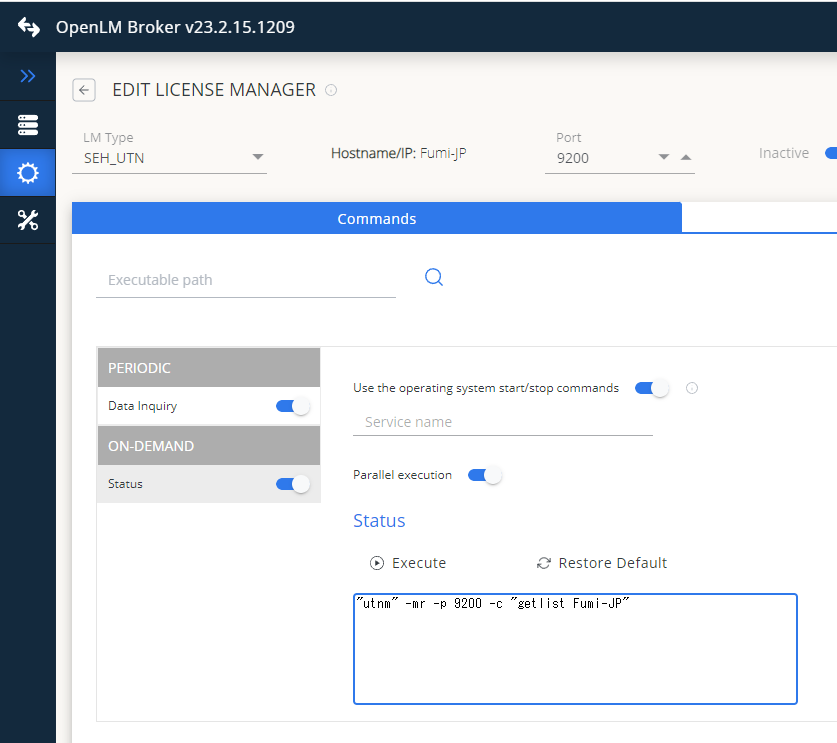
At this point, OpenLM should start collecting SEH licensing information.
Configure OpenLM Platform
-
Log in to OpenLM Platform.
-
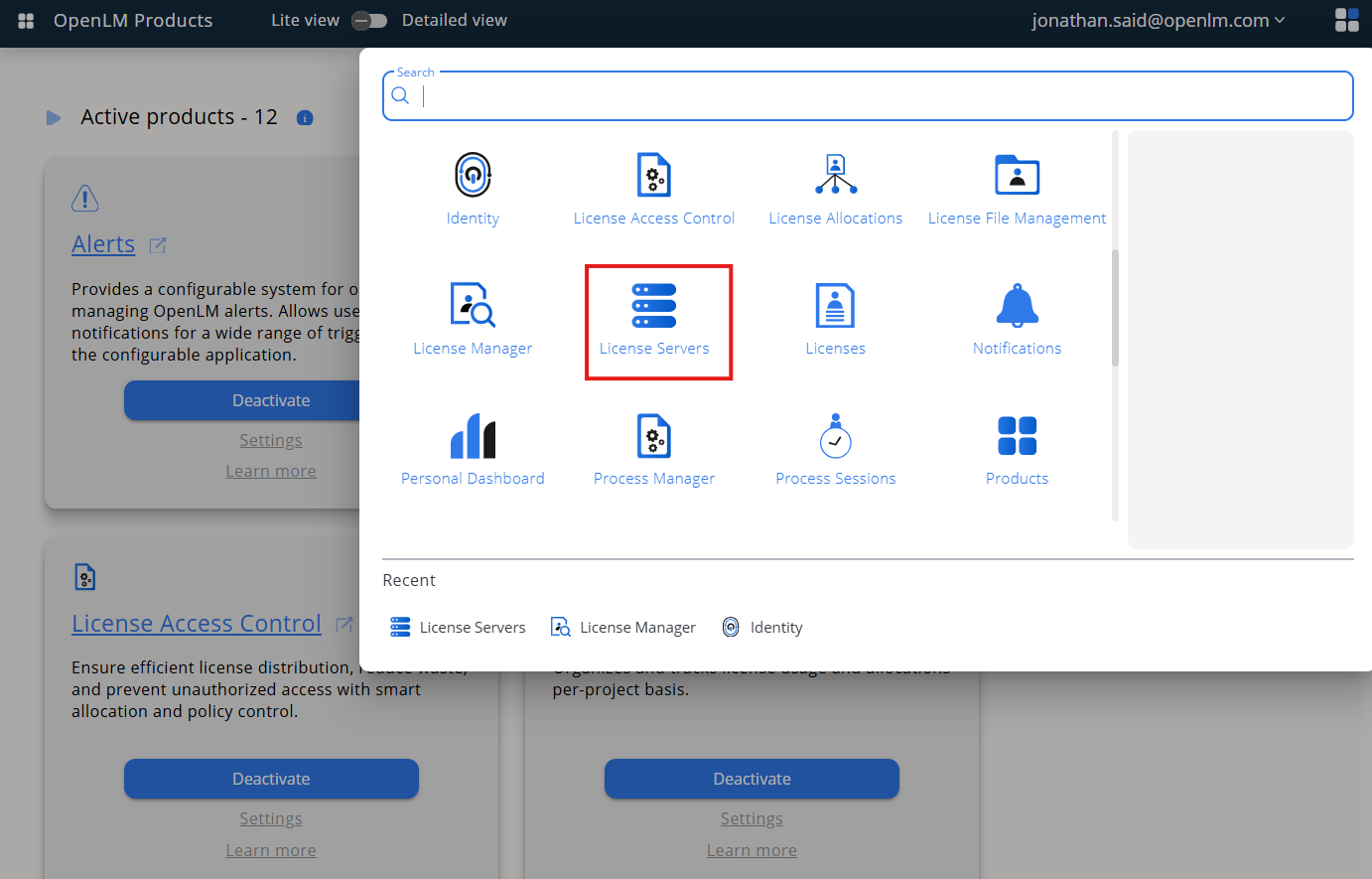
From Menu, go to License Servers.
-
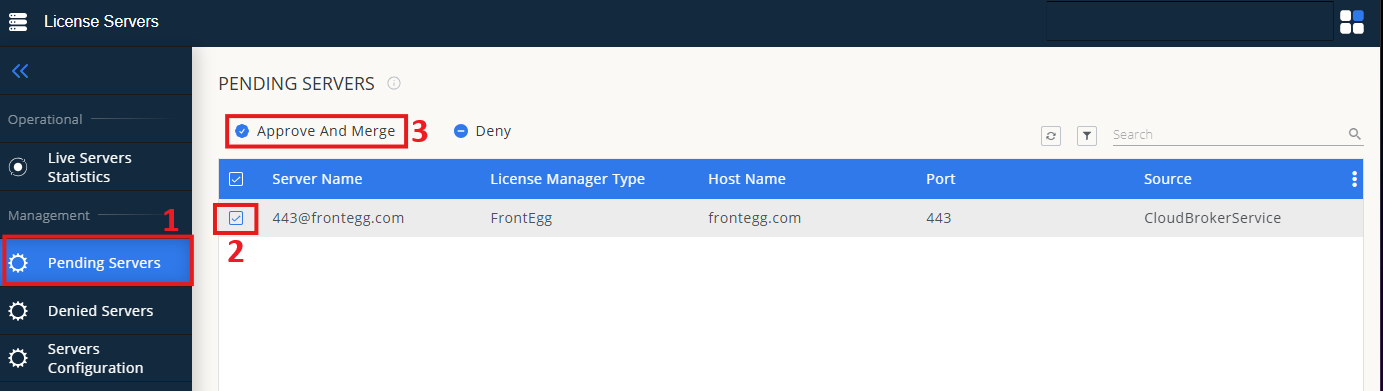
On left menu, select Pending Server
-
On the list, select the SEH-UTNlicense manager and click on Approve and Merge
-
In OpenLM Web Interface -> Menu -> License Servers Live -> Server Statistics.
-
Ensure SEH-UTN appears in the list with a green status indicator.
Note: It can take up to 3 minutes for the status to update for new connections.