Flexera Flexnet (FLEXlm)
OpenLM can monitor Flexera FlexNet (TokenFlex) for license usage and token consumption.
Requirements
- OpenLM Platform
- OpenLM Broker v25.x or higher installed on the same machine as Flexera Flexnet, and approve it in Broker Hub.
Broker configuration
-
Open OpenLM Broker Configuration.
-
Select OpenLM Servers -> Add -> select localhost.
-
Set OpenLM Server hostname.
-
Click Check connectivity to OpenLM Server -> Apply.
-
Click Detect to find FlexLM license servers.
-
Select the license server hostname tab.
-
If the port is not listed, click Add Port.
-
Under License Servers, configure:
- License Manager Type: FlexLM
- License file path: vendor license file path (if available)
- If no license file is listed, click Set Path Manually -> Add -> select the file.
- Check Watch License File.
-
Click Apply.
-
In Commands, set the path to the vendor's lmutil.exe, click Update, then Apply.
-
In Vendors:
- Click Add Vendor if none exists.
- Set Name exactly as provided by the vendor (e.g., adskflex, ptc_d, MLM, ugslmd).
- Option File Description: descriptive name for the options file.
- Option File Path: path to the options file.
- Check Watch Options File.
-
In Log Files:
- Click Add Log if none exists.
- Set:
- Type: log file type
- Name: descriptive name
- Path: vendor debug log file path
- Vendor: vendor name
-
Click Apply.
-
Click Restart Broker -> OK -> close the tool.
-
In OpenLM Web Interface, go to Widgets -> License Servers and click Approve on the red-line entry.
-
In OpenLM Server Configuration, enable Token Support for the license server.
-
Click Apply.
Configure OpenLM Platform
-
Log in to OpenLM Platform.
-
From Menu, go to License Servers.
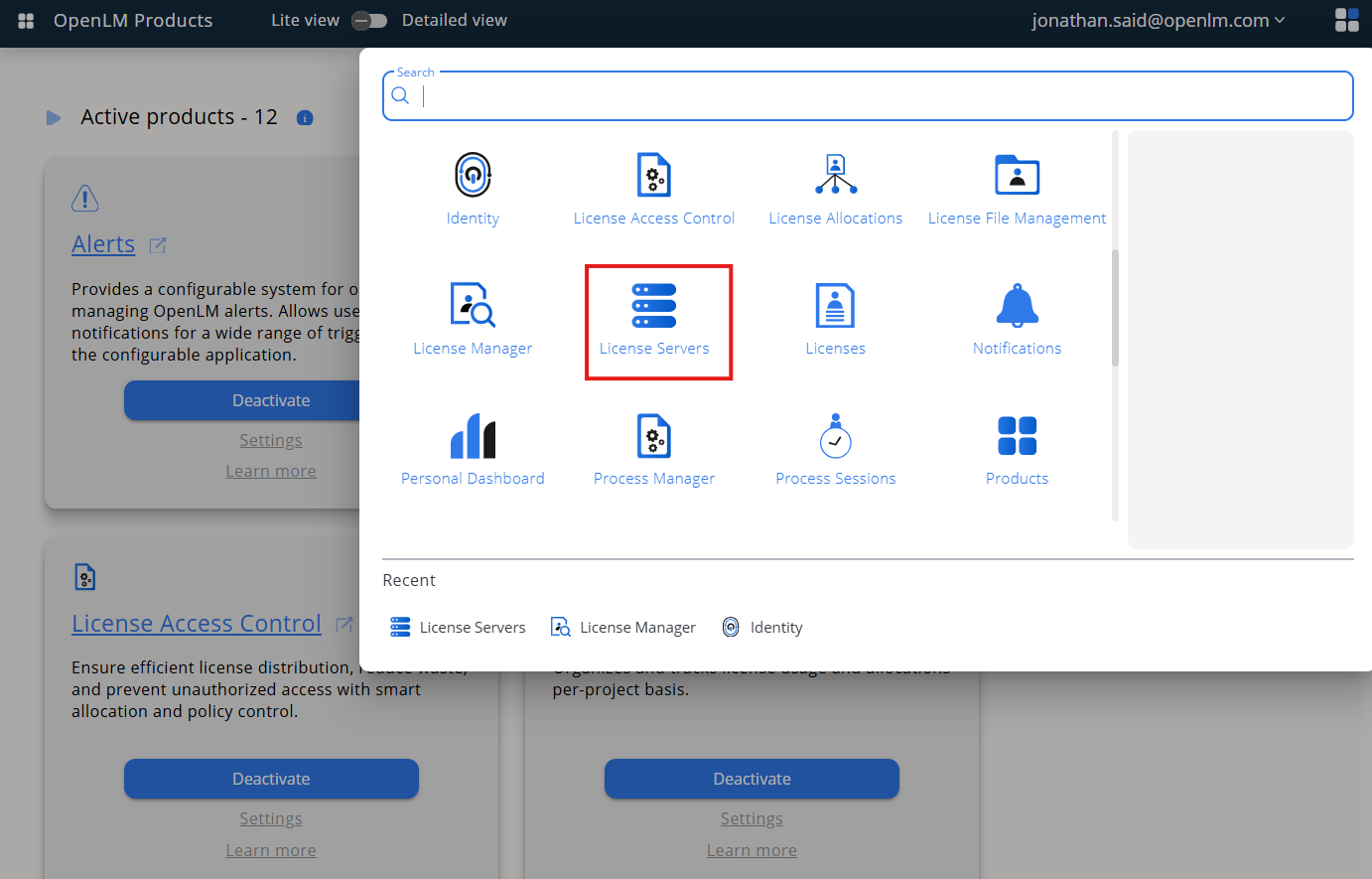
-
On left menu, select Pending Server
-
On the list, select the Flexera Flexnet license manager and click on Approve and Merge
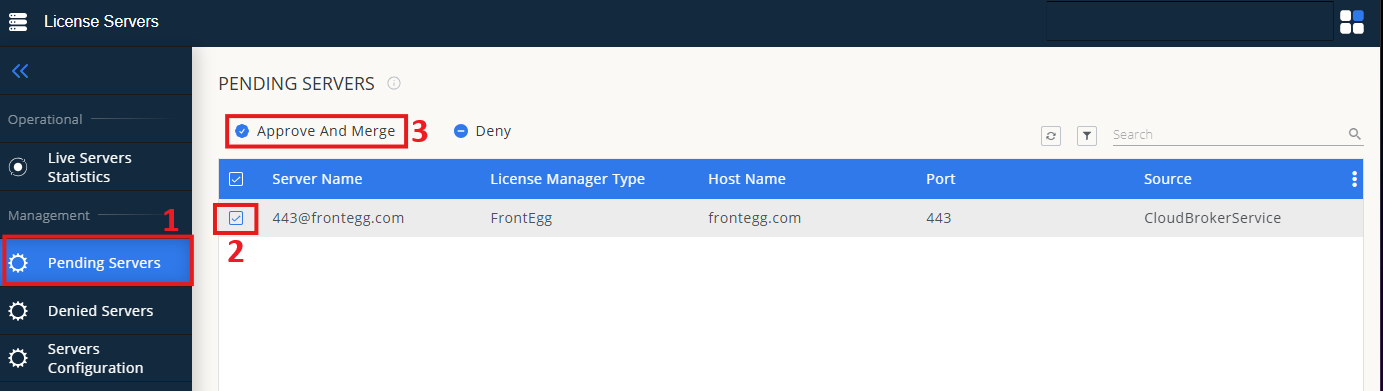
-
In OpenLM Web Interface -> Menu -> License Servers Live -> Server Statistics.
-
Ensure Flexera Flexnet appears in the list with a green status indicator.
Note: It can take up to 3 minutes for the status to update for new connections.
FlexLM
FlexLM (also known as FlexNet Publisher) is a widely used license management system that supports many licensed applications across different industries. This guide explains how to configure OpenLM to interface with FlexLM.
Requirements
- OpenLM Platform
- OpenLM Broker v25.x or higher installed on the same machine as FlexLM, and approve it in Broker Hub.
Automatic Broker configuration
-
Open Broker UI at http://localhost:5090/.
-
Go to License Managers -> Detect
-
FlexLM should appears
-
Validate and save
If the FlexLM service is running, Broker will configure the port and utility path automatically.
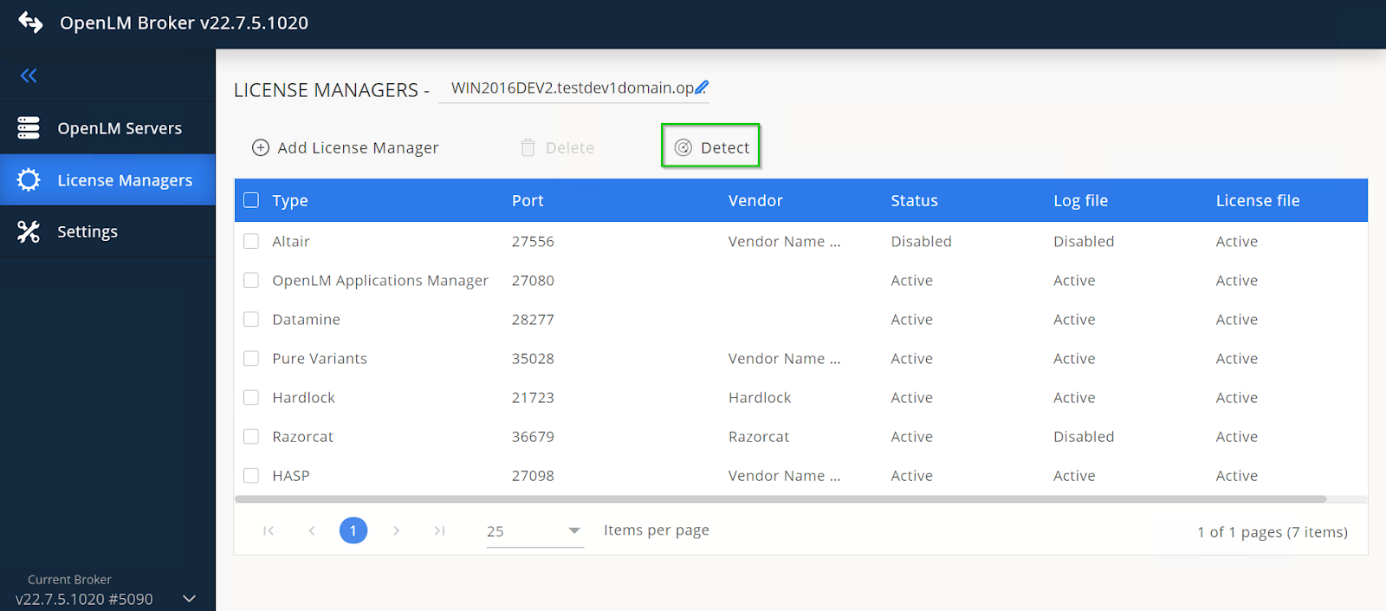
Auto-detection may not configure everything correctly. If needed, continue with manual configuration.
Configuring via Broker UI
-
Click Add License Manager.
-
Enter the Port number.
-
Select FlexLM as license manager type.
-
Click Add.
-
In Settings, add the license file path.
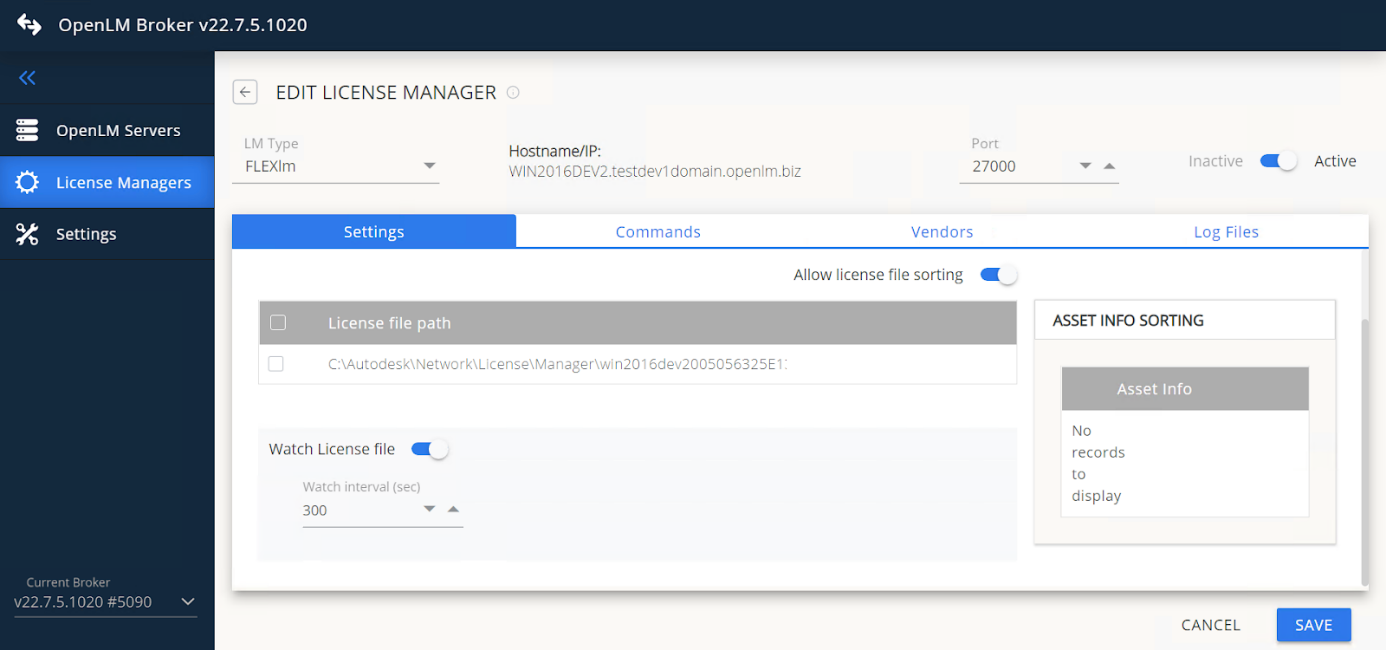
-
In Commands, verify the correct path and click Execute.

tipOn some installations, lsmon is in a different folder. If so, update the data_inquiry node manually.
-
(Windows only) If FlexLM runs as a service, enable Use OS start/stop commands and enter FlexLM License Manager.
-
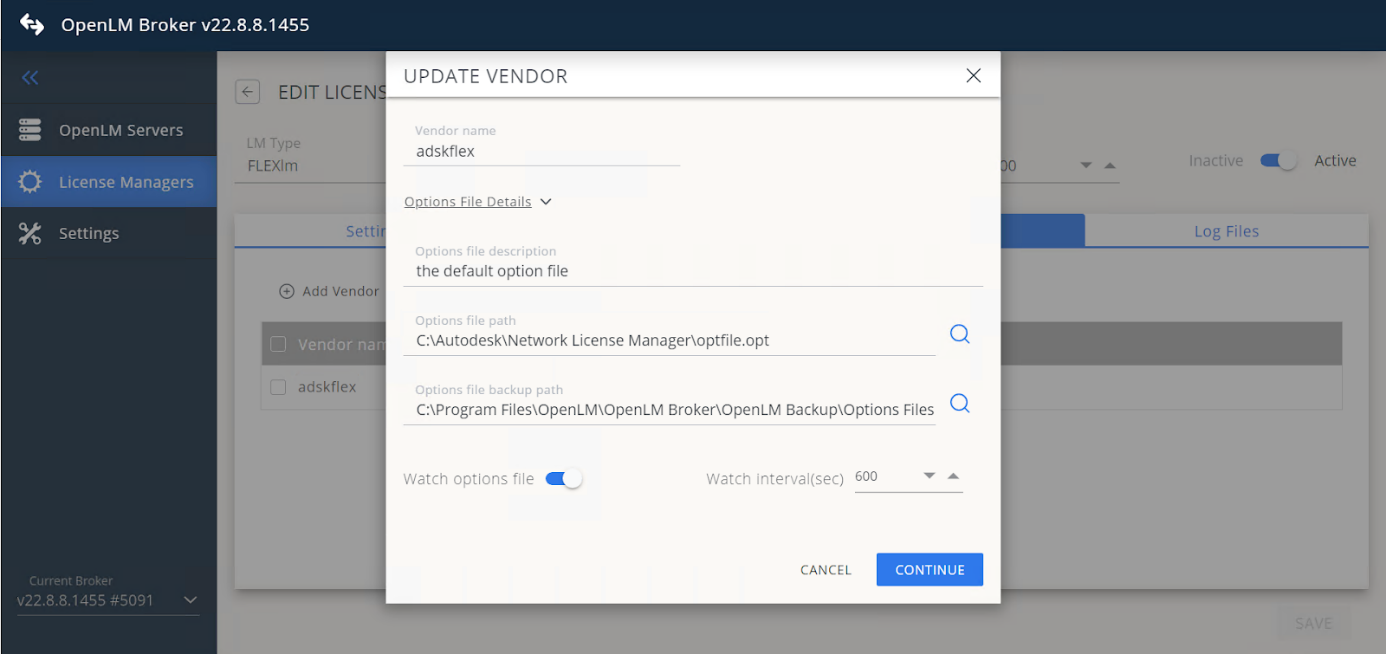
In Vendors, click Add Vendor (e.g., adskflex).
-
Expand Options File Details to configure file path and backup.
-
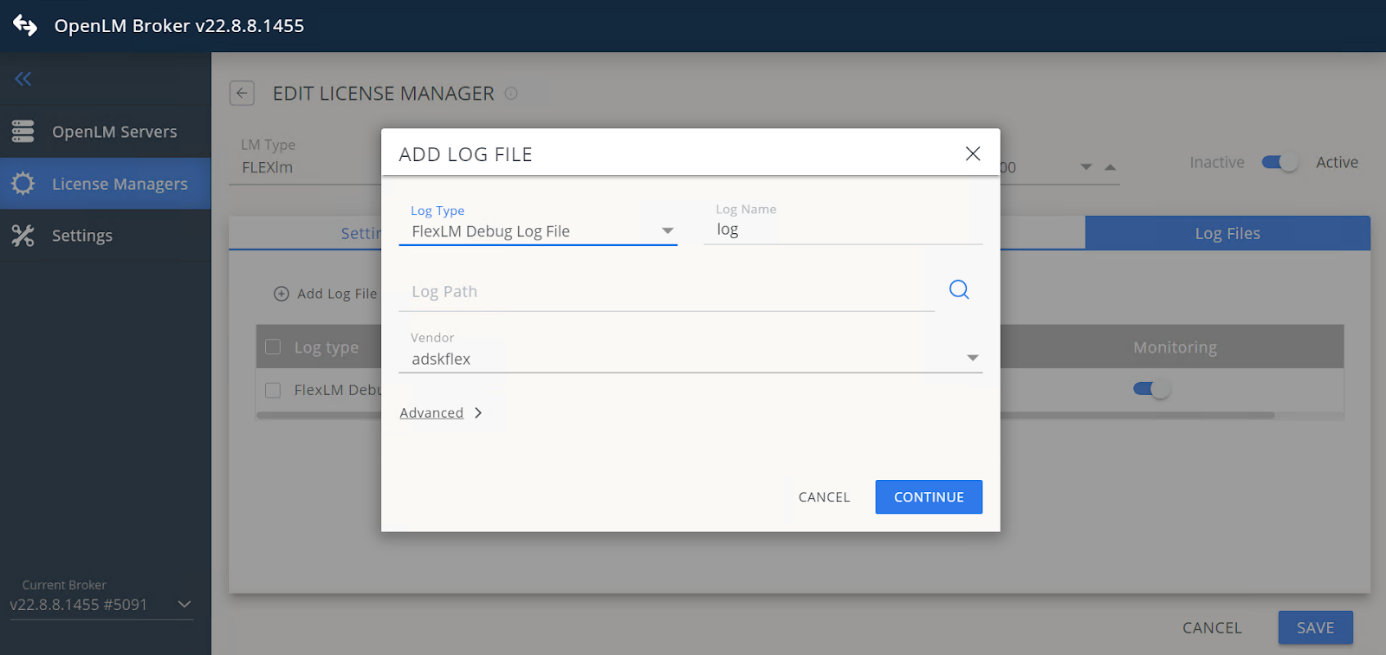
In Log Files, click Add Log File.
-
Select FlexLM Debug Log File and set the path.
-
Save the configuration.
Configure OpenLM Platform
-
Open to OpenLM Platform.
-
From Menu, go to License Servers.
-
On left menu, select Pending Server
-
On the list, select the FlexNetlicense manager and click on Approve and Merge
-
In OpenLM Web Interface -> Menu -> License Servers Live -> Server Statistics.
-
Ensure FlexNet appears in the list with a green status indicator.
Note: It can take up to 3 minutes for the status to update for new connections.