LiMBR
This integration enables OpenLM to monitor Lloyd's Register Licence Manager (LiMBR) for license usage, denials, borrowed licenses, and expiration dates.
Requirements
- OpenLM Platform
- OpenLM Broker v25.x or higher installed on the same machine as LiMBR, and approve it in Broker Hub.
Monitoring capabilities and features
| Item | Value |
|---|---|
| Report resolution | Start time: by second, end time: by minute |
| License totals | Yes |
| License usage | Yes |
| Denials reporting | Yes |
| Borrowed license reporting | Yes |
| Expiration date reporting | Yes |
| Multiple server redundancy | No |
Additionally, using OpenLM Broker allows for buffered communication and the ability to remotely start or stop the LiMBR service.
OpenLM Broker configuration
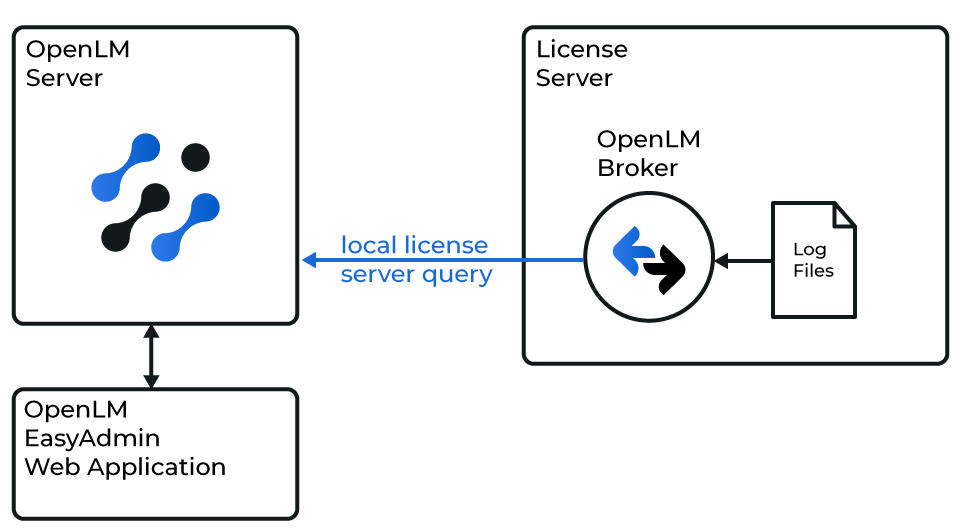
OpenLM Broker queries LiMBR locally through its command-line utility, compiles the results, and sends the data to OpenLM Server.
note
OpenLM Broker must already be installed and configured to report to OpenLM Server before proceeding.
Automatic configuration
-
In the Broker configuration tool, click Detect.
-
If LiMBR is running, Broker creates a port node with the required settings.
-
Click Apply.
-
Click Restart Broker.
-
To verify, go to Commands -> data_query and click Execute.

-
Open Broker UI at http://localhost:5090/.
-
Go to License Managers -> Add License Manager.
-
Set License Manager Type to LiMBR and click Apply.
-
In Commands, browse to the folder where LiMBR is installed, click Update, then Apply.
-
In status, check configuration.
-
In data_inquiry, click Execute and ensure the output is valid.
-
Click Restart Broker.
-
Under Vendors, enter LiMBR in Vendor Name and click Apply.
-
Click Apply again.
-
Click Restart Broker.
Configure OpenLM Platform
-
Log in to OpenLM Platform.
-
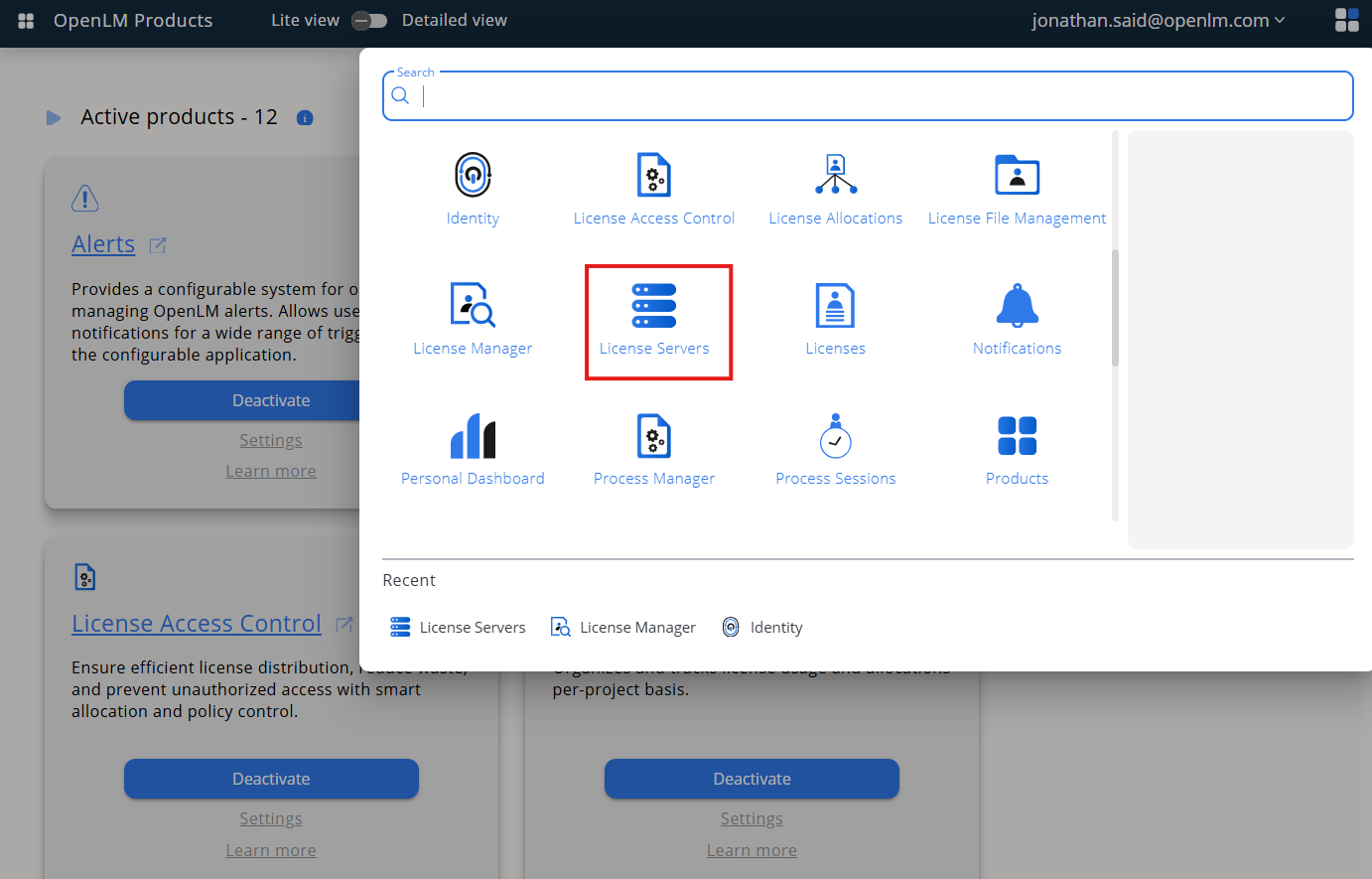
From Menu, go to License Servers.
-
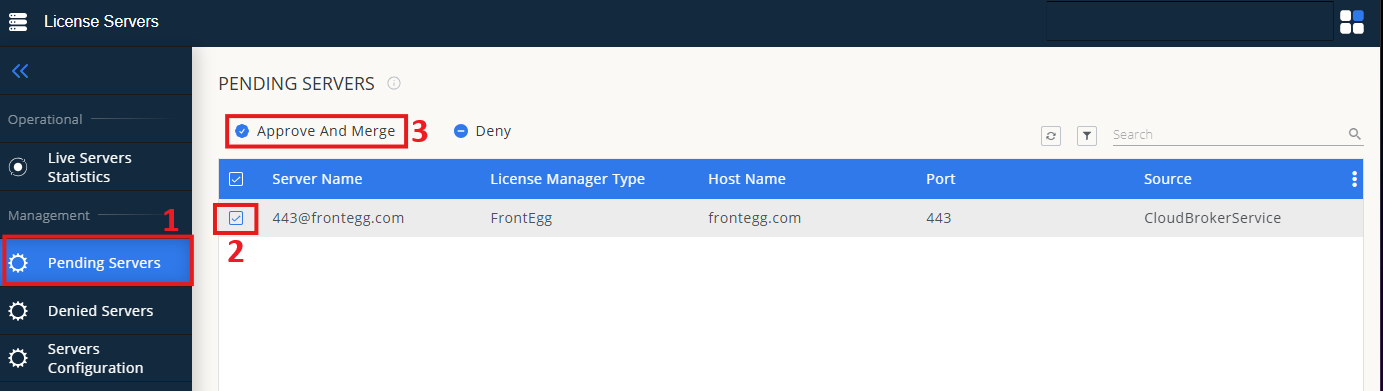
On left menu, select Pending Server
-
On the list, select the LiMBRP license manager and click on Approve and Merge
-
In OpenLM Web Interface -> Menu -> License Servers Live -> Server Statistics.
-
Ensure LiMBPR appears in the list with a green status indicator.
Note: It can take up to 3 minutes for the status to update for new connections.