License4J
Scope
OpenLM supports monitoring a wide and growing variety of license managers. This article describes how to configure OpenLM to work with the License4J License Manager and generate license usage reports. This capability is available for License4J version 4.3.4 and later.
Prerequisites
To monitor the License4J license server, install the following components:
-
OpenLM Platform
-
OpenLM Broker v25.x or higher installed on the same machine as LicenseJ4, and approve it in Broker Hub.
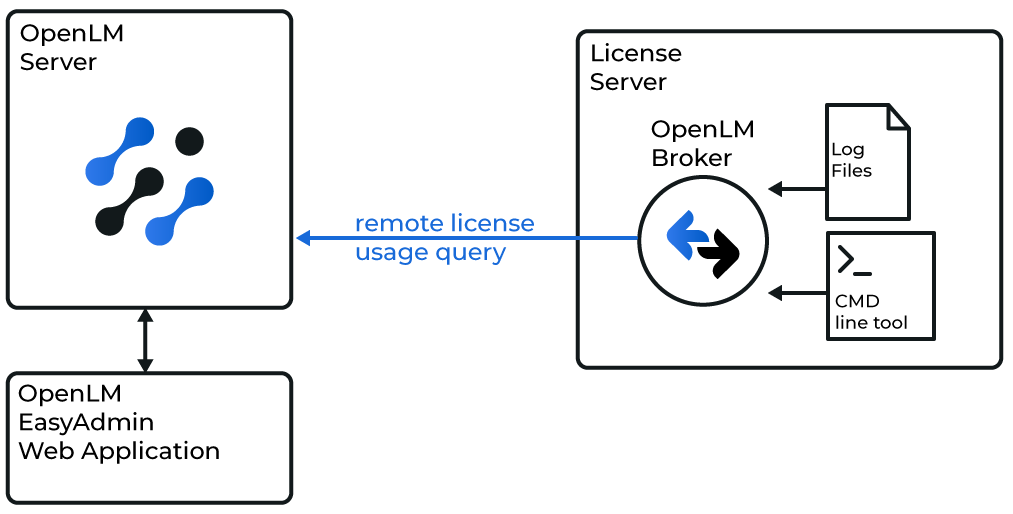
-
Open Broker UI at http://localhost:5090/.
-
Go to License Managers -> Add License Manager.
-
Set the communication port. The default is 5015. Ensure the OpenLM Server port is open for inbound communication.
-
Configure the license server details to match the OpenLM Server settings:
- Highlight the License Servers node.
- Enter the same hostname (for example, license4j_server), and click Apply.
-
Add a port for the license server:
- Select the license4j_server node.
- Click Add Port.
- Enter the same port number configured in OpenLM Server (for example, 16090).
- In the License Manager Type drop-down, select OpenLM Generic.
- Click Apply and then OK.
-
Download the License4J add-on and unzip it on the License4J server (for example, to C:\tmp).
-
Open the Commands section and select the data_inquiry node. Enter the full path to the License4J command:
java -jar "<FullPath>\FloatingLicenseServerQueryOpenLM.jar" <ServerNameOrIP>:<PortNumber> -
Example:
java -jar "C:\tmp\FloatingLicenseServerQueryOpenLM\FloatingLicenseServerQueryOpenLM.jar" license4j_server:16090 -
Click Execute to test the Data Inquiry command.
-
Click Apply.
-
Repeat steps 7-9 for the Status command.
-
Expand the Vendors node. Enter License4J as the vendor name.
-
Click Apply. If prompted with Vendor details changed, select No.
-
Click Restart Broker.
Configure OpenLM Platform
-
Log in to OpenLM Platform.
-
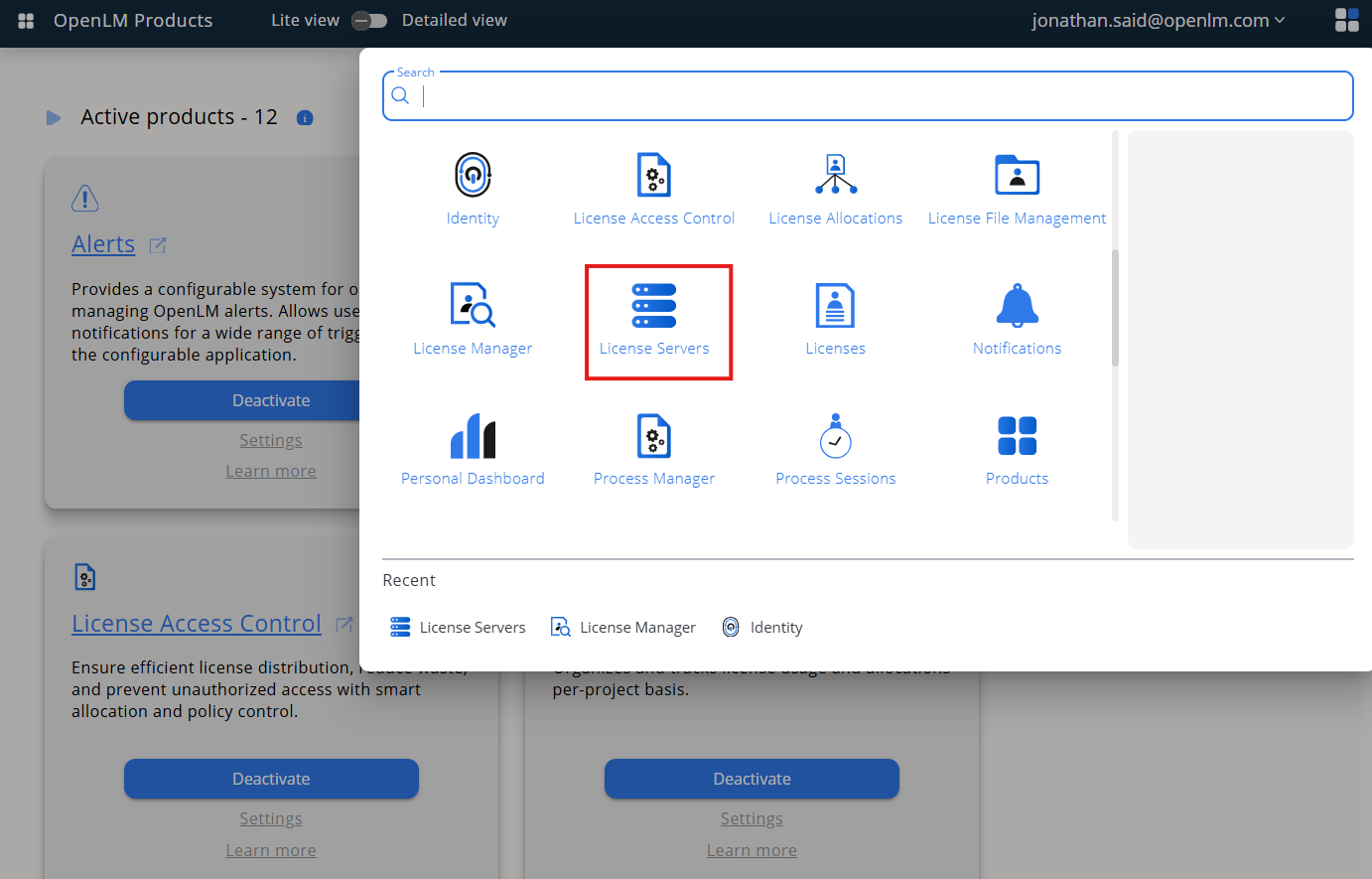
From Menu, go to License Servers.
-
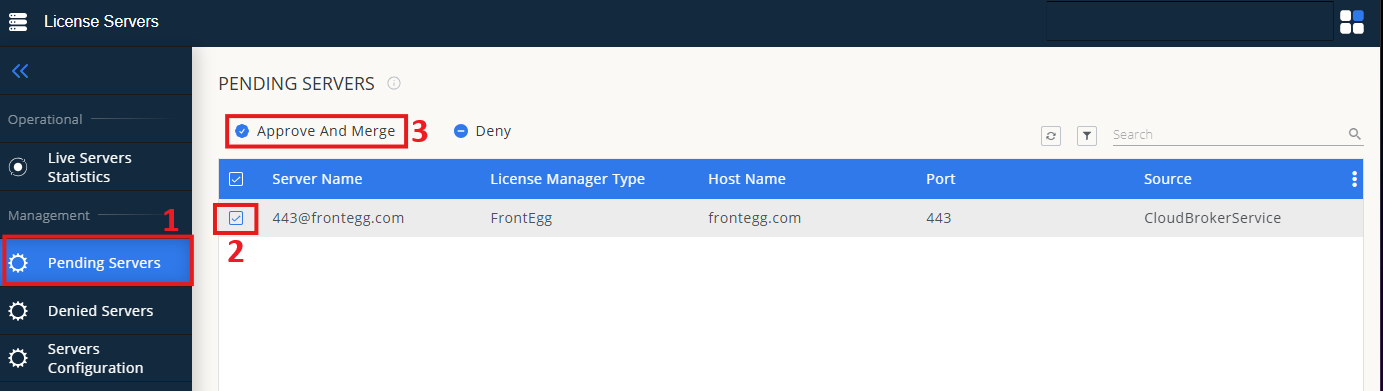
On left menu, select Pending Server
-
On the list, select the LicenseJ4 license manager and click on Approve and Merge
-
In OpenLM Web Interface -> Menu -> License Servers Live -> Server Statistics.
-
Ensure LicenseJ4 appears in the list with a green status indicator.
Note: It can take up to 3 minutes for the status to update for new connections.