Intergraph SPLM
This document describes how to interface OpenLM with the Intergraph SmartPlant License Manager (SPLM) to monitor license usage and obtain license statistics.
Requirements
- OpenLM Platform
- OpenLM Broker v25.x or higher installed on the same machine as Integraph SPLM, and approve it in Broker Hub.
Monitoring capabilities and features
OpenLM can monitor the following Intergraph SPLM activity:
| Item | Value |
|---|---|
| Report resolution | By minute |
| License totals | Yes |
| License usage | Yes |
| Denials reporting | No |
| Borrowed license reporting | No |
| Expiration date reporting | No |
| Multiple server redundancy | No |
Installing OpenLM Broker on the SPLM host machine also enables buffered communication to OpenLM Server in case of network interruptions.
Interfacing with OpenLM Server only
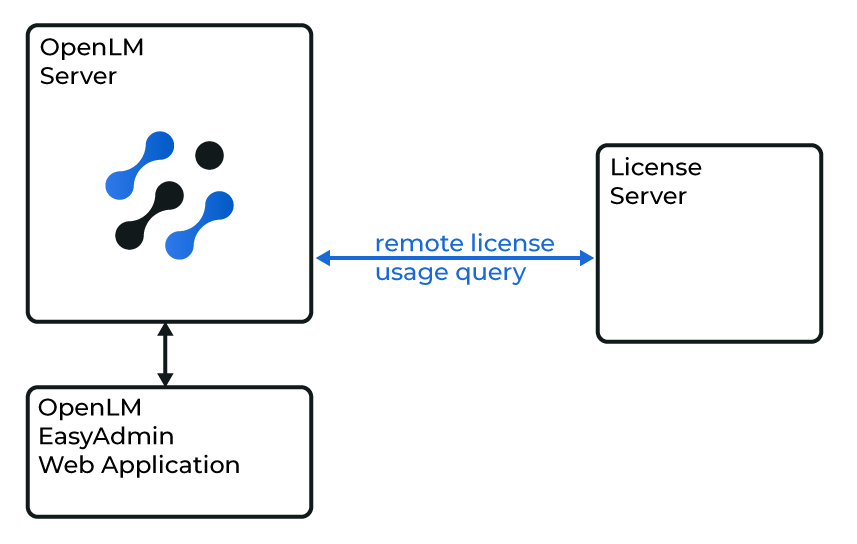
OpenLM Server should now be able to query SPLM remotely and display usage data in OpenLM Web Interface.
Interfacing with OpenLM Server + Broker

This option uses OpenLM Broker to run SPLM's command-line utility (pdlice.exe). Broker buffers usage data, ensuring continuity even if the server connection is interrupted.
Broker configuration
-
Open Broker UI at http://localhost:5090/.
-
Go to License Managers -> Add License Manager.
-
Select SPLM from the License Manager Type menu.
-
Enter the SPLM port number (e.g. 807). Click Add.
-
In Commands, set the executable path to the pdlice.exe utilities (e.g., C:\Win32applingr\pdlice\bin\pdlice).
-
In Vendors, add a new vendor and give it a name (e.g., SPLM).
-
Save the configuration.
Configure OpenLM Platform
-
Log in to OpenLM Platform.
-
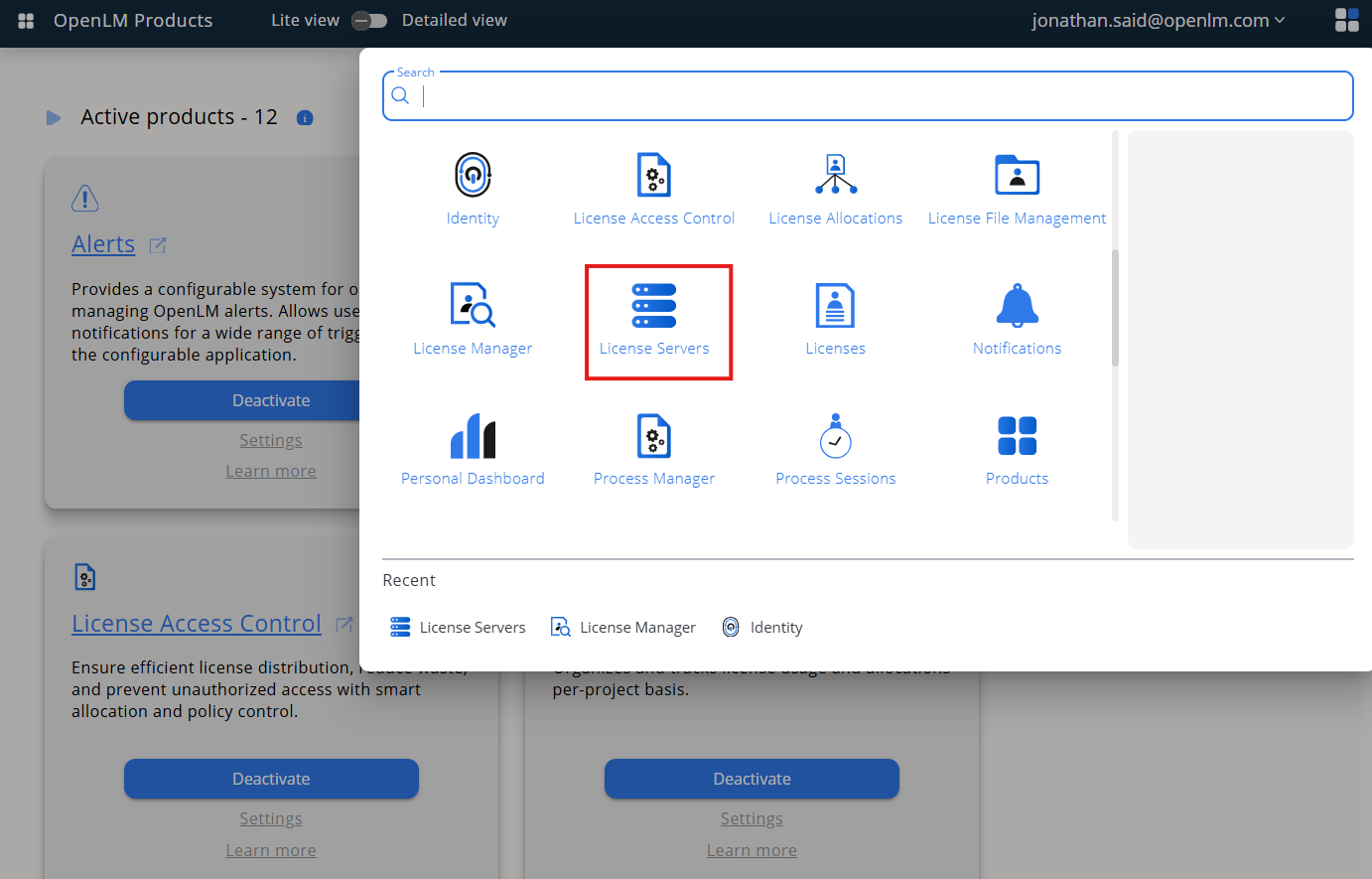
From Menu, go to License Servers.
-
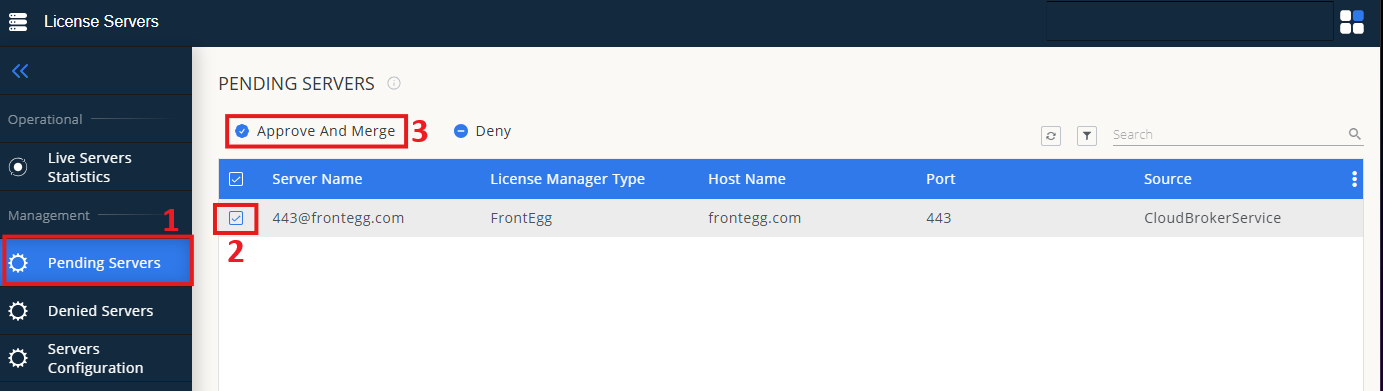
On left menu, select Pending Server
-
On the list, select the Intergraph SPLM license manager and click on Approve and Merge
-
In OpenLM Web Interface -> Menu -> License Servers Live -> Server Statistics.
-
Ensure SPLM appears in the list with a green status indicator.
Note: It can take up to 3 minutes for the status to update for new connections.